
This week’s blog post was inspired by a question I received from subscriber Max. I met Max on one of the cruises I was lecturing on. I had encouraged passengers on the cruise to set photography goals for the coming year. Max’s goals included setting up a system to manage and edit his images. Three months into that goal I asked how he was getting on and Max asked me for some advice on what system to use for editing and managing images. My answer was very straightforward: Adobe Lightroom.
It also occurred to me that I currently have quite a number of people on my mailing list and following this blog who are at the start of their photographic journeys. Many of these people are people I have met on cruises. So I hope those of you on this list who are experienced photographers will excuse me this week as I provide….
A newbie guide to Lightroom
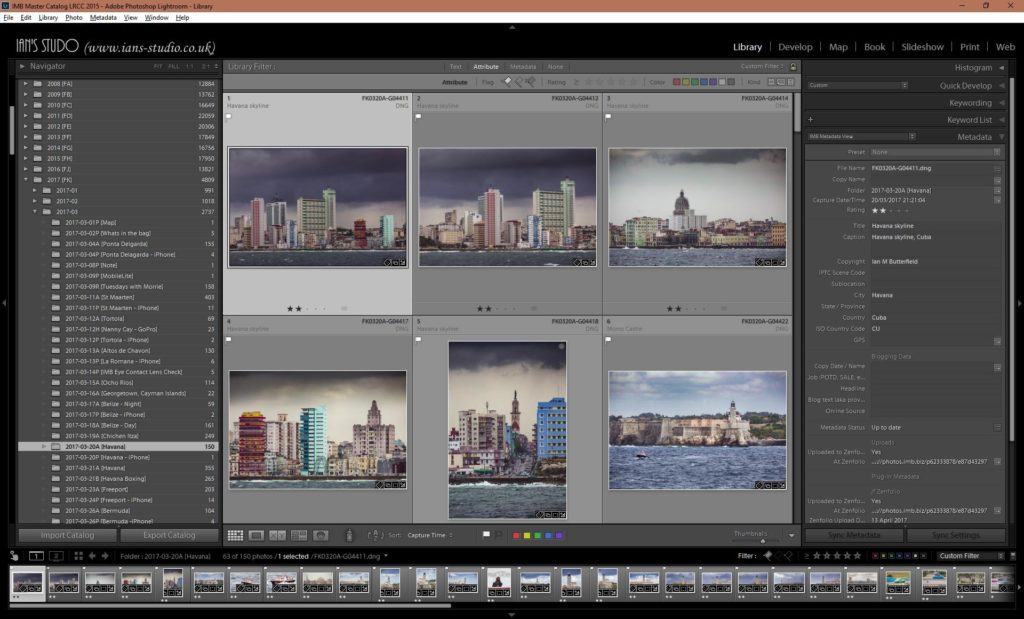
There is a common misconception about Lightroom – it is NOT a photography editing tool. It DOES permit you to edit your images and it does it so well that 95% of all photo edits that I do are done in Lightroom. But it is still not a photo editing tool. It is a photography workflow tool.
The concept behind Lightroom is that it manages all the tasks that you need to do with your images including:
- copying images from memory cards
- filing them on your computer in a way that you can find them
- adding information about each image so that you know what it is
- selecting the images you want to keep and those you want to delete
- editing your images
- rating your images so that you can concentrate only on the best
- organising your images into manageable collections
- sharing them on-line
- printing your photographs
- and much more.
Clearly this is far too much to cover in a single blog post. So what I am aiming to do here is just to give you a flavour of what Lightroom can do, and how it works.
One database to rule them all
The central concept behind Lightroom is the “catalog” – the catalog is a database containing information about your images. Adobe recommend having just one catalog for all your images, and while there are exceptions to that rule for anyone starting out with Lightroom I would recommend that is what you should do. Don’t worry about how many images it can cope with, at the time of writing, my catalog has approximate 232,000 images in it!
Nothing changes
There are two important things to remember with Lightroom.
Firstly even though we talk about “importing images into Lightroom”, Lightroom doesn’t contain your images, only information about your images. Your actual images will reside on your computer.
Secondly, even though we can ‘edit’ or change images in Lightroom, the images on your disk are never modified. Lightroom stores in its database a set of instructions which when followed will make the image on disk look like the image as you want it to. This means that all editing steps can be undone, but it also means that you can’t just use the image that you have on your disk – it hasn’t been modified. Instead, you need to tell Lightroom to create a new version of the image with all the changes applied. In Lightroom this is called exporting.
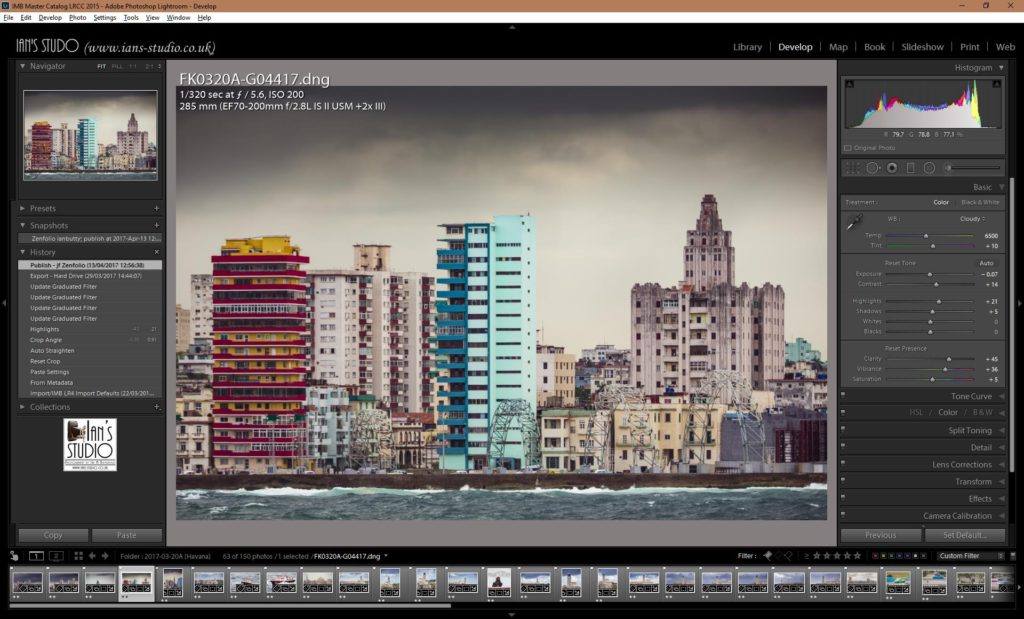
Modules and dialogs
At the top of the Lightroom screen is a “Module Picker”. Each module in Lightroom corresponds to something you may want to do to your images.
The modules are:
- Library – where you organise and add information about your images
- Map – where you can geotag images
- Develop – where you can edit your images
- Print – where you can print your images
- Book – where you can create a photobook
- Slideshow – where you can create a slideshow
- Web – where you can create and upload a web gallery to your own web server
Perhaps confusingly some actions are done via dialog boxes rather than modules. The main two that you will use are
- Import – where you bring images into Lightroom
- Export – where you create new versions of the images with all your changes applied.
Simplified workflow
At its simplest, working with Lightroom has four stages to it. These four stages are :
- Import (Import dialog)
- Organise (Library Module)
- Edit (Develop Module)
- Output (Export dialog)
Find out more
I’ll come back to Lightroom in future blog/newsletter posts with more details on the different parts of the Lightroom workflow. It will probably be something like once a month. Next time I do a Lightroom blog post it will all be about the import dialog box.
Until then you might want to take another look at this blog post from earlier in the year where I discuss the importance of naming conventions and recommend one to you: https://www.ians-studio.co.uk/2017/02/blog-10-feb-2017-whats-in-a-name/ . One of the reasons I recommend that naming/filing convention is because it is easy to implement in Lightroom as part of the import process.
Until next time, keep MAKING great images,
Ian.


Leave A Comment
You must be logged in to post a comment.